App navigation
On a large screen the main areas sit in the left sidebar. On a phone they sit in the bottom tab bar. Both use the same labels.
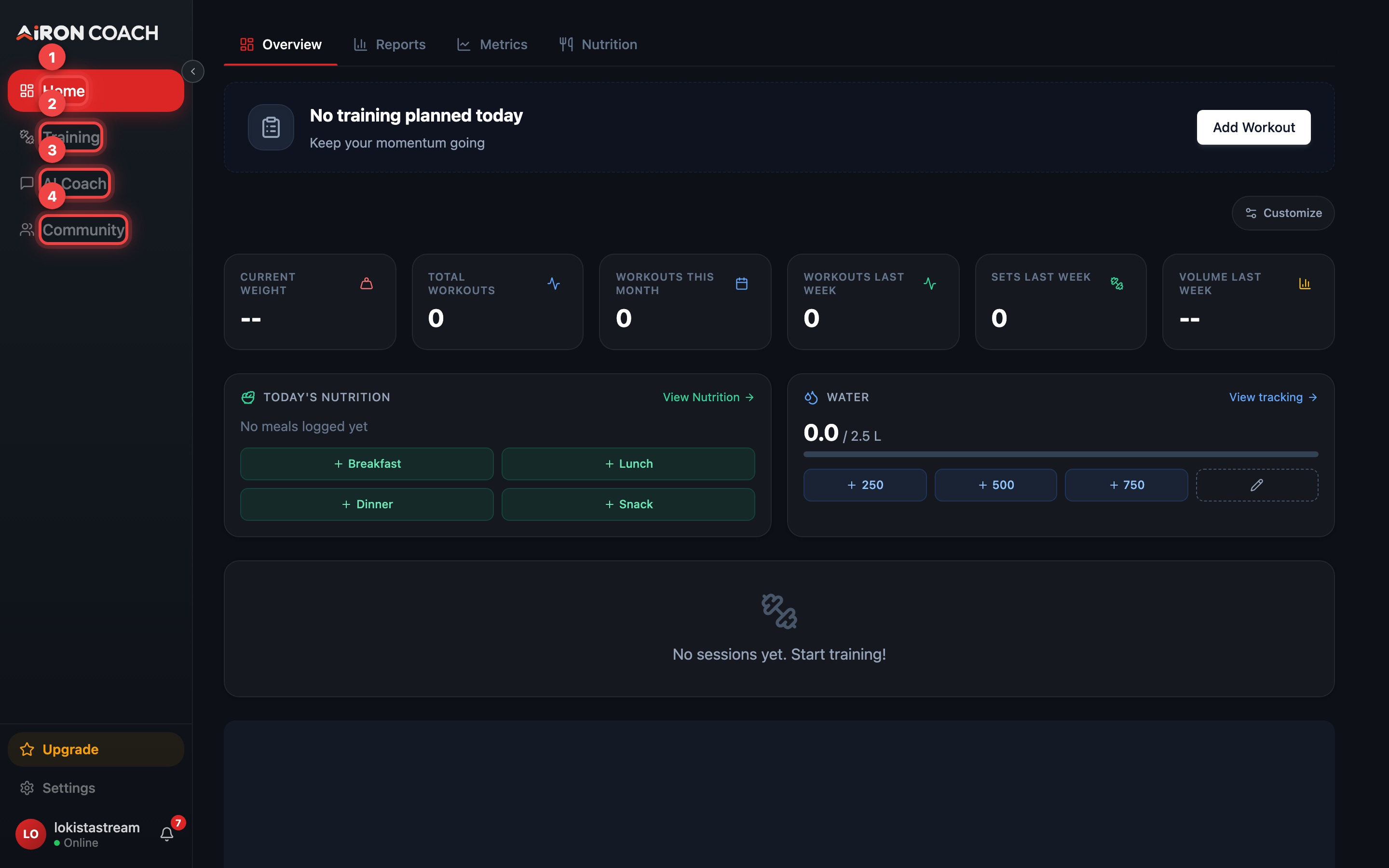
- Callout 1: Home — your dashboard
- Callout 2: Training — calendar, exercises and templates
- Callout 3: Your AI coach
- Callout 4: Community feed
airon.coach · · 9cb414d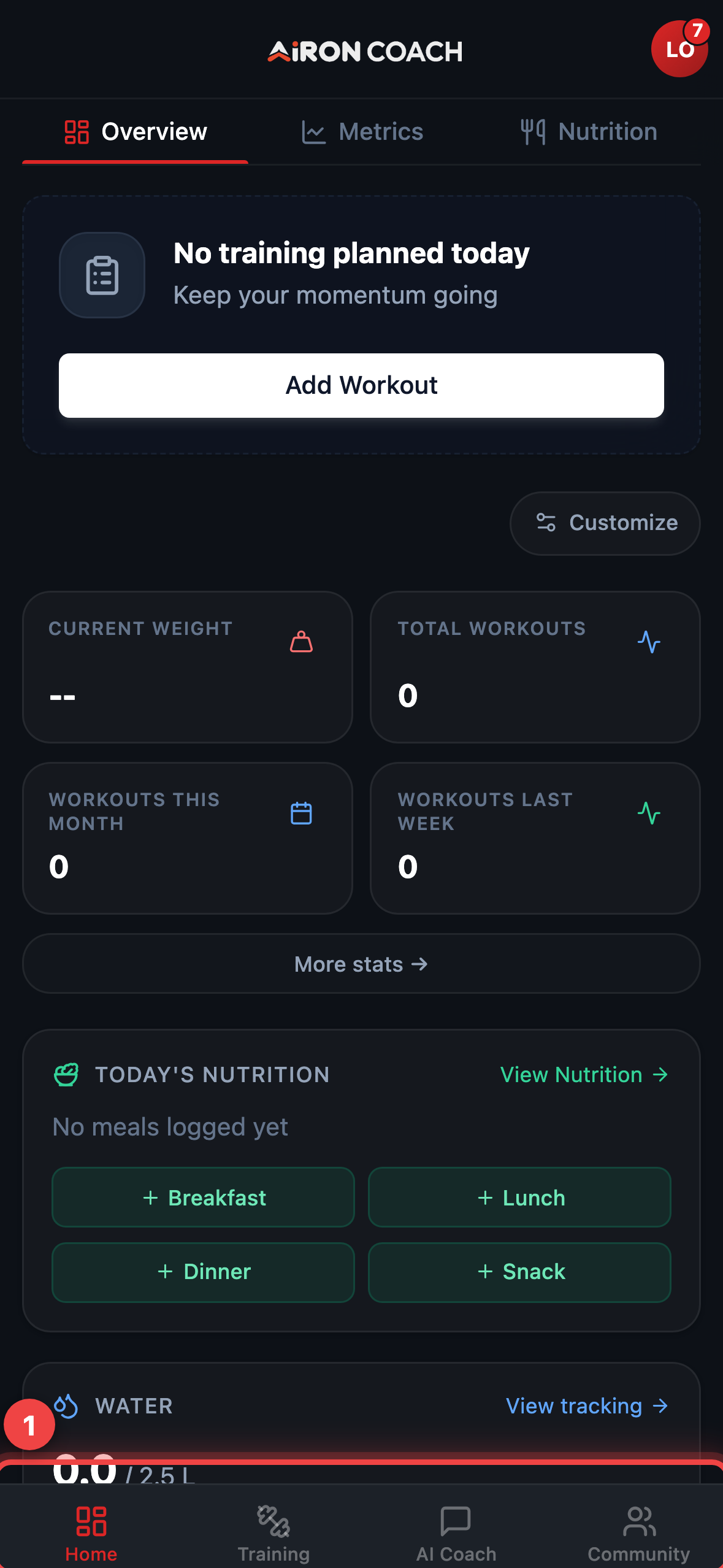
- Callout 1: Tab bar — tap to switch areas
airon.coach · · 9cb414dAthlete entries
Section titled “Athlete entries”| Label | Opens |
|---|---|
| Home | /Home — dashboard |
| Training | /Training — calendar, exercises, templates |
| AI Coach | /Chat — AI conversation (solo athletes) |
| Community | /Community — feed and team discovery |
Settings is available from the profile area in the sidebar (not always a primary tab).
When the label says Chat instead of AI Coach
Section titled “When the label says Chat instead of AI Coach”If you have an approved team membership, the coach nav item is labelled Chat instead
of AI Coach. Opening it still goes to /Chat, where you can switch between Coach
Chat (your human coach / team) and AI Coach.
Coach-only entries
Section titled “Coach-only entries”Coaches and trainers with team management access also see:
| Label | Opens |
|---|---|
| Clients | /Trainees — trainee workspace |
| TeamHub | /TeamHub — team operations |
Athletes never see these two entries.
Nutrition and cardio pillars
Section titled “Nutrition and cardio pillars”Nutrition (/Nutrition) and related routes appear when the nutrition pillar is on
in your profile (default on). If you turn nutrition or cardio off in Settings, those
screens are gated until you re-enable them.